



Lucia Todova
Co-Founder | CTO of PDFix Technology


Quick Overview: PDFix Desktop now has a screen reader preview built into the Tags panel. It shows the tagged content as one readable document, in the order assistive technology reads it. Headings appear at their real sizes, tables sit on a grid, and images appear next to their alternate text. Because it is the same tag tree underneath, you can fix issues right there.
ON THIS PAGE
A tag tree is precise. It just doesn’t read like a document. It tells you that a P sits inside a Sect inside a Document, and it will happily show you a thousand of them. What it won’t tell you is whether the content still makes sense once the page layout is gone. And that is exactly what a screen reader user gets.
That’s why most accessibility tools offer a second way to look at tags: a preview that drops the page and shows the tagged content from top to bottom, in the order assistive technology moves through it. If you review PDFs regularly, you have almost certainly used one. Many specialists open it right after tagging, before anything else.
PDFix Desktop now has that view too. It lives in the Tags panel, one click away from the tree you already know.
❶ Your Document, the Way a Screen Reader Meets It
Click the Screen Reader View button in the Tags panel toolbar, and the tree steps aside. In its place you get the document itself, built out of tags. Every tag becomes a box, with its type in a colored strip on the left and its content inside. Boxes nest the way tags nest, so a list inside a section inside an article is something you see, not something you count.
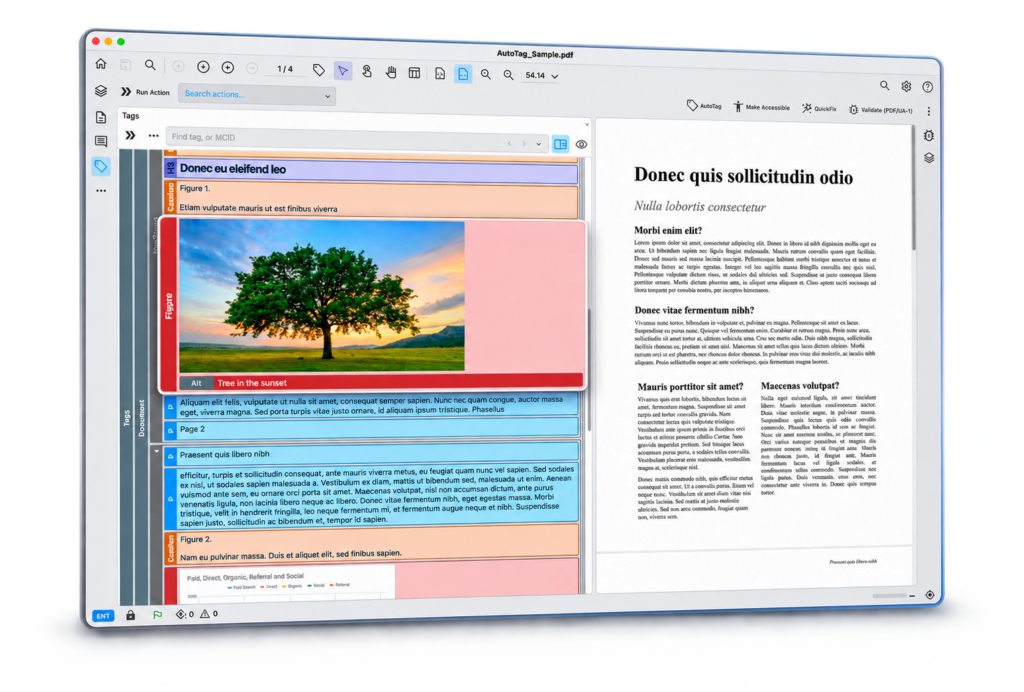
The text is the real text, in reading order. Headings are drawn larger and bolder, from H1 down, which turns the outline of your document into something you can scan in seconds. A chapter title tagged as a plain paragraph doesn’t hide anymore. It looks like body text, and it looks wrong.
Tables finally look like tables. Instead of a long run of TR and TD nodes, the cells sit on a grid, and the ones that span several rows or columns land exactly where they should. Cells with missing headers are highlighted, and when you select a cell, the headers it belongs to light up as well.
Figures show a preview of the image itself. Put the alternate text next to it, and a description like “image1.png” is impossible to overlook.
How Much Detail Does Screen Reader View Show?
You decide how much detail you want. The View Options button in the status bar of the document window holds the same settings that control what the Tag tool highlights on the page, and Screen Reader View follows them. Turn on language, alternative description, actual text, placement, table summary or MCID when you need them. Turn them off for a clean read-through. Checking alt text across a fifty-page report? Leave on just that one.
PDFix remembers your choice, so if this becomes your preferred view, the next document opens in it too.
❷ Fix What You See, Right Where You See It
A preview is where you find problems. In PDFix, it’s also where you fix them. Screen Reader View isn’t a report or an export. It’s the same tag tree as the classic view, with the same selection. Click a box, and the same tag is selected in the tree and highlighted on the page.
That means you can fix problems the moment you spot them:
Working the other way round works too. Select something on the page, choose Find Tag from Selection, and the view scrolls straight to its box.
There’s one deliberate difference from the classic tree. Only group tags, the ones you define as groups in Preferences, can be collapsed here. Everything else stays open, because the point of this view is to read the document, not to fold it away.
A FIVE-MINUTE HABIT WORTH KEEPING
After auto-tagging, switch to Screen Reader View and scroll through the whole document once. Headings, tables and images either look right or they don’t. Fix what you see, then validate.
❸ A Preview, Not a Reader
One thing it won’t do is speak. Screen Reader View shows you the structure and the text that assistive technology works with. How NVDA, JAWS or VoiceOver will actually announce each element still depends on the software and the platform, so for important documents a final listen with a real screen reader is still worth it.
But by the time you get there, most of the surprises are gone. Fewer round trips, far less clicking through little triangles, and when you do need the classic tree, it’s the same button away.
Try PDFix Desktop 4.0 free
Full-featured, no sign-up, no credit card – batch validate & fix your PDFs for PDF/UA compliance in one single view.
Saved files include a watermark in the free version.
Frequently Asked Questions
What is Screen Reader View in PDFix Desktop?
A second way to display the Tags panel. Instead of a collapsible tree, you see the tags as nested boxes in reading order, with the real text, heading sizes, table grids and image previews.
Can I edit tags in Screen Reader View?
Yes. Change a tag type, drag boxes to fix the reading order, or right-click for the full tag menu. Alt text and other properties are edited in the tag properties, as usual.
Do I still need to test with a real screen reader?
For important documents, yes. The view catches structural problems early, but it doesn’t speak, and each screen reader can announce things a little differently.