Run PDF Validation

How to Create Accessible PDF

Annotations

Bookmarks

Accessibility

Tags

Content

Layout Template

Workspace

Table Tool

No headings found in this post.

Selection tools

SDK Actions

Preferences

Thumbnails

No headings found in this post.

Fonts

No headings found in this post.

PDF Conversion

Browser

No headings found in this post.

Destinations

License

How to Define Annotations

Missing help

No headings found in this post.

PDFix Actions Pipeline

External Actions

How to Define Tags

How to Define Content

Tag Tool

Basic Actions

Layout Template

Master PDF Auto-Tagging with Layout Templates

Introduction

PDFix Template Layout is a rule-based system that allows users to define custom layout recognition and tagging logic for PDFs. This is essential for structured documents (e.g., statements, catalogs, invoices) and for achieving compliance with accessibility standards such as PDF/UA.

This technical documentation provides a comprehensive reference to all features, functions, and nodes used in the Template Layout language, complete with advanced examples, implementation details, and behavioral logic derived from internal SDK methods like split_texts.

Why Use a Template?

  • Ensure consistent tagging across similar documents
  • Improve the accuracy of semantic tagging
  • Save time on manual remediation
  • Enhance accessibility and screen reader compatibility
  • Boost efficiency by applying one template to thousands of similar PDFs

General Template Logic

The PDFix template system is a rule-based layout engine defined in JSON. It allows users to precisely control how PDF layout recognition, auto-tagging, and content extraction are performed, by declaring a structured set of conditions, functions, and modifiers.

Core Components of Template Logic

The logic operates dynamically during PDF parsing and is structured around the following core building blocks.

  • Queries – Logical conditions that decide when a function node applies. Queries use operators like $and, $regex, $gt on attributes such as text content, font size, position, color, etc.
  • Thresholds – General thresholds are numeric or boolean parameters under the pagemap section that fine-tune layout recognition in the PDFix Template system. These thresholds influence how elements like text, images, tables, lines, and labels are interpreted and grouped.
  • Expressions – General regular expressions are defined under the pagemap_regex node in the template file. These expressions guide the recognition engine in identifying list labels, page numbers, captions, fillings, bullets, and other patterns critical to structural analysis of a PDF document.
  • ElementsInitial element creation: This is where the layout engine creates the first meaningful elements (e.g., text blocks, tables, images) from raw low-level content like words, paths, and annotations. The template defines what to extract, where, and how to initialize bounding boxes, types, and tags.
  • Functions – Define processing stages of layout recognition. Examples include "word_update", "text_line_update", "element_update", table_update. Each function modifies or classifies elements based on the current state.

Queries

The query node in PDFix templates defines logical conditions that determine whether a specific function rule should apply to a PDF element (like a word, line, image, etc.). The query node is found in nearly all layout functions.

It is always used inside function definitions like "word_update", "text_line_update", "element_update", etc., and controls their behavior based on object attributes (e.g., font size, position, content).

Think of it as a conditional filter:

  • If false, it is skipped.
  • If the query evaluates to true, the function node is applied.

To ensure a function like "word_update" always applies, use a "query" that always returns true. This means: no conditions are set → match everything.

"query": {
  "param": [["pde_word"]],
  "$and": []
}

To prevent a function from executing for specific words (e.g., when "text" equals "Hello"). This rule allows only words not equal to "Hello".

"query": {
  "param": [["pde_word"]],
  "$and": [
    { "$0_text": { "$ne": "Hello" } }
  ]
}

How to Define a "query" in PDFix Template Functions

Statements

Control flow of conditional logic.

  • $if – Required. Applies the query if its condition is true.
  • $elif – Optional. Applied only if previous $if or $elif failed.
  • $else – Optional. Fallback if all previous branches failed.

⚠️ Note: Only one statement block is applied during evaluation — the first that matches.

Parameters

Parameters define which objects the function is evaluating, and they are indexed as "$0", "$1", etc., in the "query".

Each function (e.g. "word_update", "element_graphic_neighbours", "text_line_neighbours") declares its input object types using the param array, like so:

"param": ["pde_word", "pde_word"]

How Parameters Work

  • Each item in param corresponds to an input index:
    • "$0" = first parameter (e.g., the left word)
    • "$1" = second parameter (e.g., the right word)
  • You reference attributes using this index:
    Examples:
    • "$0_text" = text of the first word
    • "$1_font_size" = font size of the second object
    • "$0_bbox.left" = left X coordinate of the first element’s bounding box
TypeDescriptionExample Fields
pde_wordWord-level layout unit used in text grouping, labeling, and splitting functionstext, font_size, bbox, flag, word_flag
pde_text_lineA complete line of text composed of multiple wordsbbox, word_space, text_line_flag, heading
pde_text_runStyled inline span within a line, e.g., italic/bold segmentstext, font_size, bbox, text_state_flag
pde_imageAn image object extracted from the pagebbox, alt, label, actual_text, children_num
pde_tableA recognized table layout composed of rows, columns, and cellsbbox, row_num, col_num, table_type
pde_cellA single cell inside a table, used in cell_update, table_updatebbox, cell_row, cell_column, cell_row_span, cell_column_span
pde_listList container element typically grouping labeled itemsbbox, label
pde_lineA graphical line (vector) element often forming table/grid bordersbbox, width, stroke_color, label
pde_rectA graphical rectangle element (vector), can be layout or decorationbbox, width, height, label
pde_elementA generic layout element used for cross-type queries (e.g., line vs image vs text)bbox, type, flag, alt, actual_text
pds_objectRaw page object (text, path, image, etc.) used in low-level detectionfont_size, text, bbox, artifact, type
pds_struct_elemTagged structural element from PDF (like H1, P, Figure)tag_type, id, lang, actual_text, bbox
pdf_annotPDF annotation (highlight, link, note, etc.)annot_type, bbox, contents, font_size, annot_flag
Logical Operators

Used to combine multiple conditions.

  • $and – All subconditions must be true
  • $or – At least one subcondition must be true
  • $not – Inverts the condition (logical NOT)

Applies only when the left word is “Total” and the right word is “Revenue”.

"query": {
  "$and": [
    { "$eq": { "$0_text": "Total" } },
    { "$eq": { "$1_text": "Revenue" } }
  ]
}
Comparison Operators

Compare element values against thresholds.

OperatorDescriptionExample
$eqEqual to"text": { "$eq": "Title" }
$neNot equal"lang": { "$ne": "en" }
$ltLess than"font_size": { "$lt": 12 }
$lteLess than or equal"font_size": { "$lte": 8 }
$gtGreater than"bbox.left": { "$gt": 20 }
$gteGreater or equal"font_size": { "$gte": 16 }
$regexMatches a regex pattern"text": { "$regex": "^[A-Z]" }
$inBounding box containment"bbox": { "$in": "$1_bbox" }
$ninNot in bounding box"bbox": { "$nin": "$1_bbox" }
Values

Used to set or override properties when the query passes. These values modify the default layout recognition behavior. Each function supports different values, which are listed within its documentation.

For example value "flag": "artifact" marks an object as artifact.

Example OF Query Block

Example 1: If the first parameter’s font size is >10 and its text starts with a capital letter, then mark it as <H1> and assign heading "title".

{
  "statement": "$if",
  "query": {
    "$and": [
      { "$gt": { "$0_font_size": 10 } },
      { "$regex": { "$0_text": "^[A-Z]" } }
    ]
  },
  "tag": "H1",
  "heading": "title"
}

Example 2: In this case, the function applies a "capital" flag to words starting with uppercase letters and having font size > 10.

"word_update": [
  {
    "statement": "$if",
    "query": {
      "param": [["pde_word"]],
      "$and": [
        { "$0_font_size": { "$gt": 10 } },
        { "$0_text": { "$regex": "^[A-Z]" } }
      ]
    },
    "word_flag": "capital"
  }
]

Initial elements

The fundamental approach to building a complex template is to divide the document into logical sections using initial elements. Each section can have its own child template (defined in an element_template node), which overrides the main behavior of the layout recognition algorithm for that part of the document.

Initial elements are created using the element_create function. The most important value to define for an initial element is its bounding box (bbox).

Bounding boxes can be defined in two main ways:

  • Fixed bbox: Using direct coordinates.
  • Start/end bbox: More dynamic, may span multiple anchors.

Bounding box coordinates (left, top, right, bottom) can use:

  • Static float values
  • General context values ($page_num, $page_width, $doc_num_pages, etc.)
  • Parent values ($parent_top, $parent_left, etc.)
  • Anchor references ($A1_bottom, $ANCHOR_right, etc.)
  • Math functions (e.g. SUM($parent_left, 10))

Supported Math Functions

FunctionSyntaxDescription
SUM()SUM(a, b, c...)Adds all parameters
MINUS()MINUS(a, b)Subtracts b from a
ABS()ABS(a)Returns absolute value
FLOOR()FLOOR(a)Rounds down to nearest integer
CEILING()CEILING(a)Rounds up to nearest integer
MULTIPLY()MULTIPLY(a, b)Multiplies two values
DIVIDE()DIVIDE(a, b)Divides a by b, skips if b == 0
MIN()MIN(a, b, c...)Returns smallest value
MAX()MAX(a, b, c...)Returns largest value
MOD()MOD(a, b)Returns a % b (modulo), skips if b == 0
🔍 EXAMPLE

Compute a bounding box for an element 10 points below anchor $A1.top.

"bbox": {
  "left": "$A1.left",
  "bottom": "SUM($A1.top, 10)",
  "right": "$A1.right",
  "top": "$A1.top"
}

Another example – calculate the width difference between two anchors.

"bbox": {
  "left": "$B1.left",
  "right": "MINUS($B2.right, $B1.left)"
}

Thresholds

ThresholdDescription
concurrent_threadsControls the number of threads used for processing. 0 uses the system default; 1 disables parallelism.
text_onlyIf set to 1, only text elements are processed, skipping images, paths, and other objects.
rotation_detectEnables automatic detection and correction of page rotation.
background_color_redSets the red component (0–255) of the page background color used for detection.
background_color_greenSets the green component (0–255) of the page background color.
background_color_blueSets the blue component (0–255) of the page background color.
bbox_expansionBounding box expansion value in points. Helps slightly enlarge elements bounds when clustering.

Regular Expressions

ThresholdDescription
regex_hyphenDetects hyphenated word endings for line-break reconstruction (e.g. \w+-$).
regex_bulletMatches bullet characters like •, ○, ‣, etc., typically used for list items.
regex_labelIdentifies common list label patterns like (1), a), II., etc.
regex_decimal_numberingMatches multilevel decimal list numbering formats like 1.2.3.4.
regex_roman_numberingDetects Roman numeral-based list entries like IV. or (XIII).
regex_letter_numberingDetects alphabetic list entries like a), B., etc.
regex_page_numberDetects standalone page numbers in both numeric and Roman numeral form.
regex_table_captionRecognizes caption headers for tables such as ‘Table 1’ or ‘Tab. 2’.
regex_image_captionRecognizes image captions like ‘Figure 1’, ‘Img. 2’, etc.
regex_note_captionDetects notes or source references such as ‘Note:’ or ‘Source:’.
regex_hyphen_rtlDetects hyphenated word endings in RTL text.
regex_bullet_rtlMatches RTL bullet characters.
regex_bullet_fontIdentifies bullet symbols based on font (e.g. Wingdings, Symbol).
regex_label_rtlDetects RTL variants of list labels like (א), ב., etc.
regex_roman_numbering_rtlMatches RTL Roman numeral formats.
regex_letter_numbering_rtlMatches RTL letter-number formats like א., ב), etc.
regex_fillingDetects filling lines using repeated characters like ... or ___.
regex_filling_charCharacter set used for line filling (e.g., ._).
regex_first_capMatches lines starting with a capital letter.
regex_first_cap_rtlMatches RTL lines starting with a capital letter.
regex_terminalMatches lines ending with terminal punctuation (., !, ?).
regex_terminal_rtlRTL version of terminal punctuation detection.
regex_chart_captionMatches captions like ‘Chart’, ‘Map’ for graphical content.
regex_toc_captionDetects TOC (table of contents) headers like ‘Contents’, ‘TOC’.
regex_colonMatches colon characters : at the end of text.
regex_colon_rtlRTL version of colon detection.
regex_commaMatches trailing punctuation like , or ;.
regex_letterDetects individual Latin letters.
regex_letter_rtlDetects individual RTL letters.
number_charsCharacters allowed in numbers, like +, -, ., %, etc.
numbering_splitter_charsCharacters used to split multilevel numbering: ., (, ), [, ].

Functions

The layout recognition engine processes each page from bottom to top and groups primitive objects into logical entities like words, lines, paragraphs, rules, tables, lists, etc.

In PDFix Desktop, each processing step can be visually debugged and adjusted. You can use the settings -> debug_pagemap_stop property in the template to stop the layout engine after any step to inspect intermediate results. This is especially useful when building templates – you can verify every step separately and identify where recognition failed.

For example, setting the stop point to word_update halts after words are recognized. You can then verify whether superscripts and subscripts are properly merged into words. This technique is also helpful for debugging complex processes like paragraph assembly or table recognition.


🧩 element_create

The element_create function inserts a new layout element (initial element) into the document structure. Unlike other functions that modify detected elements, this one defines initial elements manually – based on explicitly set parameters like bounding box and type. This is especially useful in cases where automatic detection fails and manual control over structure is required.

The element is only created if the following is defined:

  • valid type
    • pde_text, pde_text_line, pde_image, pde_container, pde_list, pde_line, pde_rect, pde_table, pde_cell, pde_toc, pde_header, pde_footer
  • bbox or start_bbox and end_bbox
    • Fixed Bounding Box Elements – The simplest way to define an initial element is with a fixed bbox. This method is best for elements like headers, footers, or static sidebars that appear at known locations.
    • Anchor-Based Initial Elements – A more flexible method uses anchors. An initial element’s position and size are defined relative to previously detected anchor elements. This allows dynamic placement based on content structure. The system creates initial elements at the start of page processing and assigns each page object to one of them based on overlap.
  • unique name

⚠️ Note: If the bbox is zero-sized the function cause error during layout detection.

⚠️ Note: By using this method, you override the default behavior of the recognition engine. Instead of detecting elements heuristically, the engine will use your pre-defined type, bbox, and flags.

Nested Templates (element_template)

An initial element can contain its own element_template node. If present, this child template completely replaces the parent template for that section. This means that:

  • ⚠️ Functions and values from the main template do not apply within this section
  • ⚠️ Only the child template will be used to process that region

If element_template is not defined, the initial element inherits the parent or global template rules.

Initial element matching modes

  1. Exact bounding box match – if the no_expand flag is set, the element’s bbox is extended using initial_element_expansion.
  2. Overlap-based matching – if no_expand is not set, the layout engine checks if the overlap area with a parent exceeds the initial_element_overlap threshold. If so, the parent is assigned.

🔧 Editable Values

KeyDescriptionAllowed Values / Notes
typeType of element to be createdpde_text, pde_line, pde_rect, pde_table, pde_image, pde_cell, pde_container, pde_list, pde_toc, pde_header, pde_footer
bboxFixed bounding box{left, bottom, right, top} — numbers, variables, or math functions
start_bboxStart boundary for dynamic regionsSame format as bbox
end_bboxEnd boundary for dynamic regionsSame format as bbox
nameUnique name for referencing the element laterAny string
idCustom tag ID (used in structure tree, alt-text, or association)Any string
flagElement classificationartifact, header, footer, splitter, no_join, no_split, no_table, no_image, no_expand, continuous, anchor
text_flagMarks text-specific behaviortable_caption, image_caption, chart_caption, note_caption, filling, uppercase, new_line, no_new_line
tagStructure tag for accessibility outputP, H1H6, Span, Div, Table, TH, TD, L, LI, Lbl, LBody, Figure, Caption, Note, TOC, Title, etc.
headingVisual/semantic rolenormal, h1, h2, h3, h4, h5, h6, h7, h8, title, note
labelList level or label typelabel, li_1, li_2, li_3, li_4, label_no
langLanguage identifierISO 639-1 format (e.g., en, de, sk, cs, en-US)
actual_textOverride for actual text used in screen readersAny string
altAlternate description (for figures/images)Any string
single_instancePrevents duplicate tagging if properties matchComma-separated from: type, width, height, left, right, top, bottom, bbox, font_size, font_name, text, fill_color, stroke_color, angle, alt, actual_text, flag, word_flag, text_line_flag, text_flag, lang, cell_column, cell_row, cell_column_span, cell_row_span, cell_scope, row_num, col_num
sort_directionSorting of children (reading order)0 = automatic, 1 = vertical (columns), 2 = horizontal (rows)
splitterUsed to split layout inside the elementpde_table, pde_cell, etc. (same as type)
element_templateNested template logic applied to this elementMust follow full template {} JSON structure inside

Table or Cell specific fields

KeyDescriptionAllowed Values
col_numTotal columns in the tableInteger ≥ 1
row_numTotal rows in the tableInteger ≥ 1
cell_columnCell column indexInteger ≥ 1
cell_rowCell row indexInteger ≥ 1
cell_column_spanNumber of columns the cell spansInteger ≥ 1
cell_row_spanNumber of rows the cell spansInteger ≥ 1
cell_scopeHeader scoperow, column, both
cell_headerMarks the cell as a headertrue or false
cell_associated_headerLinks to one or more header cellsHeader cell ids

⚙️ Thresholds

ThresholdDescription
initial_element_expansionInitial bounding box expansion (in points) when searching for children inside an initial element. If set to 0, it defaults to half the page’s average font size.
initial_element_overlapMinimum percentage of the element’s area that must be covered by the initial element to be considered a child. Typical range: 0.0–1.0.

📦 Template Source

Values are taken either from the element_template node if it is defined for the given initial element,
or from the general document-level template if not.

🔍 Example

This JSON snippet defines virtual elements for tagging content on page 1 of a PDF document using the element_create function. It demonstrates two primary use cases:

  • Creating a header region with a nested template
  • Manually tagging the text in specific bounding box wrapping each line of the text in a single  P tags
"element_create": [
  {
    "elements": [
      {
        "bbox": [
          "0",
          "688",
          "$page_width",
          "$page_height"
        ],
        "element_template": {
          "template": {
            "pagemap": [
              {
                "rd_sort": "2",
                "rd_sort_direction": "2",
                "statement": "$if"
              }
            ]
          }
        },
        "type": "pde_header"
      },
      {
        "bbox": [
          "88.05127716064453",
          "527.709228515625",
          "325.1794738769531",
          "677.7356567382812"
        ],
        "text_flag": "new_line",
        "type": "pde_text"
      }
    ]
  }
]

🧩 object_update

The "object_update" function processes low-level graphical elements ("pds_object", including "pds_path", "pds_image", "pds_shading", "pds_form") from the current PDF page content. It prepares them for downstream layout interpretation by classifying them into higher-level structures such as "pde_line", "pde_rect", or marking them as decorative artifact.

This function is where vector paths and other graphical instructions are analyzed and, if matching geometric and style heuristics, are converted into semantic layout elements. It assigns each recognized object an initial element, which can then be referenced in functions like "line_update", "rect_update", or "element_create".

🔧 Values

  • "flag" – Set "flag": "artifact" to mark a graphical object as decorative. It will be excluded from further structural recognition. Set "flag": "header" or "footer" to move the object into logical top or bottom containers for layout grouping. These objects remain part of structural recognition.

⚙️ Thresholds

  • artifact_similarity
  • element_line_similarity
  • element_line_width_max
  • element_line_width_max_ratio
  • element_line_w1
  • angle_deviation
  • isolated_element_ratio
  • path_object_max
  • path_object_min

📦 Template Source

  • The "element_template" node of the initial element assigned to the "pds_object", if such an initial element is defined.
  • Otherwise, values are taken from the general document-level template.

💡 Best Practice Recommendations

  • 🚫 Use "flag": "artifact" early in "object_update" to eliminate decorative graphics, top/bottom bars, or watermarks before they interfere with downstream logic.

🔍 Example

Example 1: Mark all graphic objects above 750 pixels on the first page as artifacts.

"object_update": [
  {
    "flag": "artifact",
    "query": {
      "$0_bottom": {
        "$gt": "750"
      },
      "$page_num": "1"
    },
    "param": [
      "pds_object"
    ],
    "statement": "$if"
  }
]

🧩 annot_update

The "annot_update" function processes all "pdf_annot" objects on the current PDF page and decides how they should be represented in the page layout. It ensures annotations are either:

  • Converted to structured layout elements (e.g., "pde_form_field", "pde_annot")
  • Skipped from further processing if irrelevant
  • Tagged correctly for accessibility or export

This function operates as the bridge between low-level PDF annotations and high-level semantic tagging.

Key operations include:

  • Widget annotations (like form checkboxes or text inputs) are transformed into "pde_form_field" elements.
  • Non-widget annotations (such as comments, highlights, or drawing shapes) become "pde_annot" layout elements.
  • All annotations are inserted into the page map structure and attached to their closest initial container using bounding box proximity.

🔧 Values

  • "alt" – Set "alt" value to define the annotation’s alternate text. It is used as the alternate description for the annotation tag.

⚙️ Thresholds

  • annot_char_overlap

📦 Template Source

  • General document-level template.

🧩 line_update

The line_update function evaluates graphical lines (pde_line) extracted from pds_path objects and assigns them semantic meaning or layout roles. These lines can later influence element segmentation, table detection, or be marked as artifacts.

Each line is matched to an initial element based on its bounding box and geometric similarity. This function also filters lines that are too short, too slanted, or redundant.

Lines are extended with another line by geometry and threshold. Lines will only merge if they share share the same Form XObject, pass internal style and geometric compatibility checks. If joining fails due to structure separation, consider flattening Form XObjects to normalize the content.

🔧 Values

  • "flag" – To exclude a line from tagging, set "flag": "artifact" in the template. The line will be treated as a decorative object and excluded from logical structure tagging. This is ideal for footers, underlines, or visual dividers.
  • "label" – Set "label": "li_1" or another list-related value (e.g. "li_2", "li_3") to treat the line as a list bullet or label during list detection. Use "label": "label_no" to explicitly prevent it from being recognized as a label. To visually align the line with sibling text without tagging it as a list, use "label": "label".
  • "tag" – Use "tag": "Figure" or another structure tag to classify the final tag assigned to the line. This affects how the line is tagged in the output PDF structure tree (e.g. as a decorative figure, divider, or other semantic block element).
  • "name" – Use "name" to set a template-assigned identifier for referencing the line elsewhere.
  • "parent” – Set "parent” that points to the initial element this line belongs to (use parent element "name"). If defined, the line will be grouped under it automatically.

⚙️ Thresholds

  • angle_deviation
  • table_line_intersection

📦 Template Source

  • The "element_template" node of the initial element assigned to the "pde_line", if such an initial element is defined.
  • Otherwise, values are taken from the general document-level template.

💡 Best Practice Recommendations

  • Force lines to join – Create an initial line element whose bounding box encompasses all lines you want to merge. This ensures the initial line is processed first and can extend others.
  • Force a line to join another line as its child – Define the target line as a child of another line’s init element, or set its "parent" to the initial line’s element name. This bypasses standard checks and forces the join.
  • Extend a line with another line by threshold – Increase the "table_line_intersection" threshold to allow greater alignment tolerance.
  • 🚫 Prevent a line from being joined with others using a flag – Set “no_join” flag on the line or any candidate line. This will skip the line entirely in both joining passes.
  • 🚫 Prevent a line from being joined using thresholds – Decrease the "table_line_intersection" threshold to tighten geometric similarity constraints. Lines will not be merged unless they are nearly perfectly aligned and extendable.

🔍 Example

Example1: Mark all detected lines as artifacts.

"line_update": [
  {
    "@statement": "$if",
    "@query": {
      "@param<type>": "query_param",
      "param": [
        ["pde_line"]
      ]
    },
    "@flag": "artifact"
  }
]

Example 2: Prevent joining of horizontal lines whose line width is less than 4.

"line_update": [
  {
    "flag": "no_join",
    "query": {
      "$and": [
        {
          "$0_height": {
            "$lt": "4"
          }
        }
      ]
    },
    "param": [
      "pde_line"
    ],
    "statement": "$if"
  }
]

🧩 rect_update

The "rect_update" function processes graphical rectangle elements ("pde_rect") derived from "pds_path" objects. Its primary role is to merge adjacent or aligned rectangles that visually form a larger background block. This is a common scenario in PDFs, where large visual areas (like shaded backgrounds or borders) are composed of many small, fragmented rectangles.

Rectangles are joined if they share the same width or height and are properly aligned. This helps consolidate redundant layout fragments into a single, logical visual unit.

After merging, the final composite rectangle is updated based on the template. At this stage, you can apply values such as "flag", "tag", or "label" — for example, to mark the rectangle as an artifact, reinterpret it as a line, or classify it as a visual label. This update step defines the rectangle’s role in the final structure tagging or layout recognition.

🔧 Values

  • "flag" – To exclude a rectangle from tagging, set "flag": "artifact" in the template. The rectangle will be treated as a decorative object and excluded from logical structure tagging.
  • "label"– Set "label": "li_1" or another list-related value (e.g. "li_2", "li_3") to treat the rectangle as a list bullet or label during list detection. Use "label": "label_no" to explicitly prevent it from being recognized as a label. To visually align the rectangle with sibling text without tagging it as a list, use "label": "label".
  • "tag" – Use "tag": "Figure" or another structure tag to classify the final tag assigned to the rectangle. This affects how the rectangle is tagged in the output structure tree (e.g. as a decorative figure, divider, or other semantic block element).
  • "name" – Use "name" to set a template-assigned identifier for referencing the rectangle elsewhere.
  • "parent” – Set "parent” that points to the initial element this rectangle belongs to (use parent element "name"). If defined, the rectangle will be grouped under it automatically.

⚙️ Thresholds

  • table_line_intersection

📦 Template Source

  • The "element_template" node of the initial element assigned to the "pde_rect", if such an initial element is defined.
  • Otherwise, values are taken from the general document-level template.

💡 Best Practice Recommendations

  • Force rectangles to join – Create an initial rectangle element whose bounding box encompasses all rectangles you want to merge. This ensures it is processed first and can extend others.
  • Force a rectangle to join another as its child – Define the rectangle as a child of another’s init element, or set its "parent" to the initial element’s name. This bypasses standard checks and forces the join.
  • Extend a rectangle with another by threshold – Increase the "table_line_intersection" threshold to allow greater alignment tolerance. Rectangles must share the same init elem, be within the same "form_obj", and pass geometric compatibility tests.
  • 🚫 Prevent a rectangle from being joined using a flag – Set the “no_join” flag on the rectangle or any candidate. This skips the rectangle entirely from merge evaluation.
  • 🚫 Prevent a rectangle from being joined using thresholds – Decrease the "table_line_intersection" threshold to tighten geometric constraints. Rectangles will only merge if nearly perfectly aligned.

🔍 Example

Example 1: Mark gray rectangles with both width and height less than 10px as labels.

"rect_update": [
  {
    "label": "li_1",
    "query": {
      "$and": [
        {
          "$0_fill_color": [
            "100",
            "100",
            "100"
          ]
        },
        {
          "$0_height": {
            "$lte": "10"
          }
        },
        {
          "$0_width": {
            "$lte": "10"
          }
        }
      ]
    },
    "param": [
      "pde_rect"
    ],
    "statement": "$if"
  }
]

🧩 object_update

The second call of "object_update" function parses low-level PDF "pds_text", extracting character streams from the page content. It segments these streams into "pde_text_run", which are then grouped into words based on character spacing and alignment.

This function is a foundational stage in the PDFix layout pipeline. Every word on the page originates from this operation. If this segmentation fails or misclassifies characters, all downstream logic — including heading detection, tagging, table recognition, and anchor matching — will be compromised.

Each generated word is assigned to an initial element based on bounding box placement. Word construction is governed by thresholds that define how much space is allowed between characters before a new word is started.

🔧 Values

  • "flag" - Set "artifact" to mark a text object as decorative. It will be excluded from further structural recognition. Set "header" or "footer" to move the text object into logical top or bottom containers for layout grouping. These text objects remain part of structural recognition.

⚙️ Thresholds

  • word_space_width_ratio
  • word_space_width_min_ratio

📦 Template Source

  • The general document-level template.

💡 Best Practice Recommendations

  • Force grouping of characters into a single word – Increase "word_space_width_ratio" to tolerate larger spacing between characters. This prevents over-segmentation in spaced or stylized text.
  • Protect low-font-size words from splitting – Use "word_space_width_min_ratio" to define a lower bound for space detection. Prevents tiny characters from being wrongly split due to rounding or precision noise.
  • 🚫 Prevent merging of distant characters – Lower the "word_space_width_ratio". This will cause characters with excessive spacing (like justified text) to be split into separate words.
  • 🚫 Prevent grouping of tiny glyphs into same word – Define a stricter "word_space_width_min_ratio" to block small-sized fonts from being merged into a single word if spacing is inconsistent.

🔍 Example

Example 1: Mark all text objects positioned above 740px as artifacts.

"object_update": [
  {
    "flag": "artifact",
    "query": {
      "$and": [
        {
          "$page_num": {
            "$gt": "1"
          }
        },
        {
          "$0_bottom": {
            "$gte": "740"
          }
        }
      ]
    },
    "param": [
      "pds_text"
    ],
    "statement": "$if"
  }
]

Example 2: Treat all text from small text objects as artifacts.

"object_update": [
  {
    "statement": "$if",
    "query": {
      "$0_font_size": {
        "$lt": 6
      },
      "param": [
        "pds_text"
      ]
    },
    "flag": "artifact"
  }
]

🧩 text_run_update

The "text_run_update" function modifies properties of individual "pde_text_run" elements immediately after they are parsed from the PDF stream. A "pde_text_run" is a continuous segment of characters with uniform visual properties, such as font or size.

Its primary role is to assign "text_state_flag" values to indicate visual or semantic roles like "subscript" or "superscript". These flags allow PDFix to preserve inline visual semantics (e.g. H₂O) without fragmenting the word structure. Text runs remain logically grouped as a single word while still being tagged appropriately for accessibility or semantic output.

This function is critical for maintaining structural fidelity in scientific and mathematical texts where superscript or subscript notation is common.

🔧 Values

  • "text_state_flag" – Marks the run as "subscript" or "superscript". The run stays part of the word but is flagged for structure tagging.

⚙️ Thresholds

  • text_line_baseline_ratio
  • angle_deviation

📦 Template Source

  • The general document-level template.

💡 Best Practice Recommendations

  • ⚠️ Always tune "text_line_baseline_ratio" when working with superscript-heavy or mathematical content.
  • ⚠️ Mark subscript/superscript as soon as possible.
  • Force superscript or subscript assignment – Use "text_state_flag": "superscript" or "subscript" for any "pde_text_run" that meets the condition (e.g. font size, position, or font family). This ensures correct tagging in output.
  • 🚫 Prevent a run from being tagged as superscript or subscript – Filter out specific runs using query — e.g. exclude large font sizes, baseline-aligned text, or specific font names.

🔍 Example

Example 1: Mark all text with a font size of 4px as superscript.

"text_run_update": [
  {
    "query": {
      "$and": [
        {
          "$0_font_name": {
            "$regex": "ArialMT"
          }
        },
        {
          "$0_font_size": "4"
        }
      ],
      "param": [
        "pde_text_run"
      ]
    },
    "statement": "$if",
    "text_state_flag": "superscript"
  }
]

🧩 text_run_neighbours

The "text_run_neighbours" function evaluates two adjacent "pde_text_run" elements and determines whether they should be joined into a single word or kept as separate runs. This function overrides the default word segmentation heuristics by allowing precise manual control — particularly useful in documents with stylized fonts, tight kerning, or inconsistent spacing.

Each pair of runs is evaluated using the "join" flag. If no explicit match is found, the fallback logic applies geometric rules, such as angle consistency, baseline alignment, and spacing.

This function is crucial for handling edge cases like chemical notations (H₂O), styled acronyms, inline superscripts, or tightly spaced titles where the automatic heuristics might fail.

🔧 Values

  • "join" – Set "join" to forces two adjacent runs to either be joined as a single word or split as separate segments.

⚙️ Thresholds

  • text_line_baseline_ratio
  • angle_deviation

📦 Template Source

  • The general document-level template.

💡 Best Practice Recommendations

  • Force two text runs to always join – Set "join": "true" when two "pde_text_run" objects match the desired condition. This will override spacing or alignment thresholds and keep them in the same word, where automatic heuristics split words incorrectly.
  • 🚫 Prevent two specific two text runs from joining – Set "join": "false" for the pair of runs. This prevents them from being merged into one word, even if they are visually aligned and spaced like a normal word.

🔍 Example

Example 1: Force join of two text runs with matching font and size:

"text_run_neighbours": [
  {
    "statement": "$if",
    "query": {
      "param": ["pde_text_run", "pde_text_run"],
      "$and": [
        { "$0_font_name": { "$eq": "$1_font_name" } },
        { "$0_font_size": { "$eq": "$1_font_size" } }
      ]
    },
    "join": true
  }
]

🧩 word_update

The word_update function processes each pde_word element after word segmentation has been completed. It plays a central role in assigning semantic meaning, formatting properties, and tagging behavior to individual words.

It performs three primary tasks:

  1. Semantic Flag Assignment
    Uses regex-based rules (e.g. regex_label, regex_decimal_numbering) to assign logical flags such as artifact, header, footer, label, or toc. These values affect downstream functions like list detection, heading grouping, and TOC interpretation.
  2. Filling and Label Detection
    Detects filler words (e.g. "...", "--") via regex_filling, and identifies structured list labels using regex_label, label_chars, and related expressions. Detected fillers can be excluded or isolated from content flow.
  3. Property Update and Artifact Extraction
    Converts matched words into standalone pde_text elements when marked with certain flags (artifact, header, etc.). These are detached from reading order and structural tagging to improve accessibility and semantic precision.

🔧 Values

  • "name" – Unique identifier for the word (used for reference or parenting).
  • "tag" – Structure tag assigned to the word ("Span", "Reference", etc.).
  • "flag" – Behavior modifier — supports "artifact", "header", "footer", etc.
  • "label" – Logical label used in lists or table of contents ("li_1", "label_no", etc.).
  • "heading" – Assigns heading role (e.g., "h1", "title", "note").
  • "actual_text" – Alternate string for screen readers — used for symbols, checkboxes, etc.
  • "lang" – Language code for the word (e.g., "en", "sk", "de").
  • "word_flag" – Manual override for system-assigned word behavior:
    • "hyphen" – Word is a hyphen, often used to split at line ends
    • "bullet" – Indicates a bullet-like list marker
    • "colon" – Word ends in a colon, possibly indicating a label or heading
    • "number" – Pure numeric value (e.g. list or TOC number)
    • "subscript" – Word is styled as subscript (visual role)
    • "superscript" – Word is styled as superscript (visual role)
    • "terminal" – Terminal punctuation like “.”, used in end-of-line detection
    • "capital" – Fully capitalized word
    • "image" – Word contains embedded image indicator or glyph
    • "decimal_num" – Decimal-based list or numeric value
    • "roman_num" – Roman numeral (I, II, IV, etc.)
    • "letter_num" – Alphabetic list marker (A, B, C…)
    • "page_num" – Matches page number pattern
    • "filling" – Filler content (e.g. “…” or “—–“)
    • "uppercase" – All-uppercase (may trigger style or structure rules)
    • "comma" – Ends with or contains a comma
    • "no_unicode" – Word contains no recognizable Unicode (symbol font, etc.)
  • "single_instance" – If set, suppresses duplicate instances across layout.
  • "word_space" – Manually overrides computed space width. Disables spacing ratio calculations when defined.

⚙️ Thresholds

  • word_space_ratio
  • word_space_update_max

📦 Template Source

  • The "element_template" node of the initial element assigned to the "pde_word", if such an initial element is defined.
  • Otherwise, values are taken from the general document-level template.

💡 Best Practice Recommendations

  • 🚫 Prevent a word from being tagged – Use "flag": "artifact" to clean up filler or non-content words (e.g. dot leaders, graphic bullets) like "...", "--", or decorative elements early in the process. These are removed from the logical flow and not tagged.
  • Force a desired tag – Use "tag": "Span" or another tag (e.g. "Div", "Note") to assign the word’s final output structure.
  • ⚠️ Set actual text – Use "actual_text" tto ensure accessibility compliance when dealing with checkboxes or symbolic fonts (e.g. converting checkboxes → “No”, → “Yes”).
  • Force label recognition for lists – Apply "label": "li_1" (or similar) when regex conditions match a list marker.
  • 🚫 Prevent a word from being interpreted as a label – Use "label": "label_no" to stop a matching word from being processed as a list label, even if it matches regex_label.
  • ⚠️ Fine-tune the automated label detection – Configure the appropriate regex patterns ("regex_label""regex_roman_numbering", or "regex_letter_numbering") to correctly identify list items.
  • ⚠️ For high-precision layouts (like forms or complex tables) – Override "word_space" manually instead of relying on "word_space_ratio".

🔍 Example

Example 1: Mark all dot-leader words as artifacts.

"word_update": [
  {
    "flag": "artifact",
    "query": {
      "$0_text": {
        "$regex": "^\\.+$"
      }
    },
    "param": [
      "pde_word"
    ],
    "statement": "$if"
  }
]

Example 2: Change the tag of all words with font size 4.5 to Span.

"word_update": [
  {
    "query": {
      "$and": [
        {
          "$0_font_size": "4.5"
        }
      ],
      "param": [
        "pde_word"
      ]
    },
    "statement": "$if",
    "tag": "Span"
  }
]

Example 3: Modify Actual Text based on character properties (text).

"word_update": [
  {
    "actual_text": "No",
    "query": {
      "$and": [
        {
          "$0_text": {
            "$regex": "□"
          }
        }
      ],
      "param": [
        "pde_word"
      ]
    },
    "statement": "$if",
    "tag": "Span"
  },
  {
    "actual_text": "Yes",
    "query": {
      "$and": [
        {
          "$0_text": {
            "$regex": "■"
          }
        }
      ],
      "param": [
        "pde_word"
      ]
    },
    "statement": "$if",
    "tag": "Span"
  }
]

🧩 Word Spacing Precision Logic

Accurate word spacing is critical for reliable recognition of text lines, paragraph types (e.g. justified vs. simple), and ultimately, for layout structure such as heading alignment or table row segmentation.

Automatic Detection of Word Space

During word recognition, a base word space is automatically estimated for each unique:

  • Font name
  • Font size

This is computed by analyzing inter-character gaps across text runs with matching font properties. It defines what spacing is considered “normal” within a word vs. between words.

This automatically estimated word space width is then used to:

  • Detect word boundaries
  • Classify a line as:
    • Simple: uniform space width
    • Justified: variable space widths

Ways to Adjust Word Space

1. Exact Override per Word (word_update)

📦 Template Source: Values are taken from the "element_template" node of the initial element assigned to the "pde_word", if such an initial element is defined. Otherwise, values are taken from the general document-level template.

"word_update": [
  {
    "query": {
      "$and": [
        {
          "$0_font_size": "4.5"
        }
      ],
      "param": [
        "pde_word"
      ]
    },
    "statement": "$if",
    "word_space": "4.2"
  }
]

Sets an exact word spacing value for this font-size & font-name combination.

  • Overrides all other logic
  • Disables word_space_ratio

Use this when auto-estimation fails for a specific word or stylized font.

2. Proportional Scaling (word_space_ratio)

📦 Template Source: Values are taken from the "element_template" node of the initial element assigned to the "pde_container", if such an initial element is defined. Otherwise, values are taken from the general document-level template.

"pagemap": [
  {
    "word_space_ratio": "1.15",
  }
]

Multiplies the estimated space width by a scaling factor. Useful for small global corrections.

  • Only used if no word_space is defined
  • Applies to all words in the container
3. Post-Line Update Adjustment (text_line_update)

📦 Template Source: Values are taken from the “element_template” node of the initial element assigned to the “pde_text_line“, if such an initial element is defined. Otherwise, values are taken from the general document-level template.

"text_line_update": [
  {
    "word_space": "4.2",
    "query": {},
    "param": [
      "pde_text_line"
    ],
    "statement": "$if"
  }
]

Once words are grouped into lines, text_line_update can fine-tune or lock the final spacing:

  • If "word_space" is defined in text_line_update, the spacing for all words in the line is set to that value.
  • If "word_space_update_max" is defined:
    • It limits re-estimation from line analysis
    • Set to 0 to prevent any automatic spacing changes

💡 Best Practice Recommendations

  • Use "word_space" only when auto-estimation fails consistently for specific fonts.
  • Apply "word_space_ratio" globally in containers (e.g., invoices or tables).
  • Avoid multiple re-definitions across "word_update" and "text_line_update" unless needed for layout corrections.
  • Use "word_space_update_max": 0 to lock final spacing post-assembly.

🧩 Label Detection

The word_update function performs detection and classification of list labels within individual "pde_word" elements. Labels such as "1.", "A", "(iii)", or bullets ("•") are detected using a combination of regex patterns and spatial relationships.

If a word is manually marked with a "label" value (e.g., "label": "li_1"), it is treated as a list item at the specified nesting level.

If no label is defined, the engine attempts automatic label detection using patterns like:

  • regex_label
  • regex_roman_numbering
  • regex_letter
  • label_chars

Once identified, label words are associated with a sibling word (the list item content) based on spatial layout — typically via horizontal alignment and distance thresholds.

🔧 Values

  • "label" – Set one of: "li_1" to "li_4" to force the detection of a list item. Apply the "label" tag to a word that should be logically connected to the following words on the same line, even if it shouldn’t be formatted as a final list tag. Use "label_no" to exclude a "pde_word" from being detected as a label and to correct false matches.

⚙️ Thresholds

  • label_word_detect
  • label_distance_ratio
  • label_word_w1
  • label_word_w2
  • label_word_dist_sibling_ratio
  • label_sibling_distance_ratio
  • label_word_distance
  • label_word_distance_ratio

📦 Template Source

  • The "element_template" node of the initial_element assigned to the "pde_word", if such an initial element is defined.
  • Otherwise, values are taken from the general document-level template.

💡 Best Practice Recommendations

  • Manually mark a word as a label – Set "label": "li_1" to "li_4" based on the nesting level. This skips all auto-detection and pairs the word with its sibling directly.
  • Mark a label candidate but skip pairing – Use "label": "label" to visually group the word with others, but skip structural detection (list logic is not triggered).
  • 🚫 Prevent recognition as label – Use "label": "label_no" to exclude a word from being considered a label even if it matches "regex_label".
  • 🚫 Disable automatic label detection – Set "label_word_detect": 0 in the template to skip label detection altogether (useful for tables, forms, or pure paragraphs).
  • ⚠️ Avoid false-positive pairings – Tune "label_word_dist_sibling_ratio" and "label_sibling_distance_ratio" to prevent mismatches due to proximity or overlap with unrelated words.
  • ⚠️ Tune label clustering thresholds – Tune label clustering thresholds — avoid false list detection by lowering "label_word_distance" or "label_word_distance_ratio" to reduce grouping sensitivity. Force list detection by raising these thresholds to allow lists that are not well structured.

🔍 Example

Example 1: Detect different label formats and assign nesting levels:

"word_update": [
  {
    "label": "li_1",
    "query": {
      "$and": [
        {
          "$0_text": {
            "$regex": "^\\([a-z]\\)$"
          }
        }
      ],
      "param": ["pde_word"]
    },
    "statement": "$if"
  },
  {
    "label": "li_2",
    "query": {
      "$and": [
        {
          "$0_text": {
            "$regex": "^\\(\\d\\)$"
          }
        }
      ],
      "param": ["pde_word"]
    },
    "statement": "$if"
  },
  {
    "label": "li_3",
    "query": {
      "$and": [
        {
          "$0_text": {
            "$regex": "^\\((i|ii|iii|iv|v|vi|vii|viii|ix|x|xi|xii|xiii|xiv|xv|xvi|xvii|xviii|xix|xx)\\)$"
          }
        }
      ],
      "param": ["pde_word"]
    },
    "statement": "$if"
  }
]

🧩 TOC Detection

The word_update function also enables detection of Table of Contents (TOC) entries. This logic identifies page number words (e.g. 15, 248, xii) using regex and pairs them with neighboring words on the same line that likely represent section titles.

A pde_word is flagged as a TOC candidate using regex_page_number. Once matched, the function searches for a sibling title (left or right, depending on reading direction), and clusters them together into a structured TOC entry.

This process improves semantic tagging and navigation in exported PDF/UA and other structured outputs.

🔧Values

  • "toc""label" = force TOC entry, "label_no" = exclude from TOC detection even if regex matches

⚙️ Thresholds

  • toc_detect
  • toc_word_distance
  • toc_word_distance_ratio

📦 Template Source

  • The "element_template" node of the initial element assigned to the pde_word, if such an initial element is defined.
  • Otherwise, values are taken from the general document-level template.

💡 Best Practice Recommendations

  • Mark a word explicitly as a TOC number – Use "toc": "label" to assign TOC behavior to a page number word. This bypasses automatic regex matching.
  • Mark a TOC-like word but skip pairing – Use "toc": "label_no" to tag a word as visually similar to TOC but prevent it from being joined into a TOC cluster.
  • 🚫 Prevent TOC misclassification – Use "toc": "label_no" to explicitly prevent it from being recognized as a TOC label (page number).
  • 🚫 Disable TOC detection – Set "toc_detect": 0 in the template. This disables all automatic TOC clustering to improve speed and avoid misclassification. Ideal for layouts without TOCs.
  • ⚠️ Prevent misgrouping of unrelated numbers – Lower toc_word_distance or toc_word_distance_ratio to avoid accidental clustering with aligned table data or figures.

🧩 word_neighbours

The "word_neighbours" function determines whether two adjacent pde_word elements should be grouped into the same "pde_text_line". It plays a critical role in reconstructing logical reading order, aligning content into proper paragraphs, headings, and table rows.

Merging of words into a line is allowed only if:

  • Their initial elements are compatible
  • Neither word has the "no_join" flag
  • Both have the same text style and writing angle
  • Their baselines are aligned (within "text_line_baseline_ratio" × "font size")
  • No splitting object (line, rect, or word) exists between them
  • The space between them is ≤ "word_space_distance_max" or "word_space_distance_max_ratio"

You can override this behavior by setting "join": "true" or "join": "false" explicitly in "word_neighbours".

🔧 Values

  • "join" – If "true", forcibly joins the two words into a single line. If "false", forcibly prevents joining.

⚙️ Thresholds

  • text_line_baseline_ratio
  • word_space_distance_max
  • word_space_distance_max_ratio

⚠️ "word_space_distance_max" and "word_space_distance_max_ratio" work only when first word is not marked as a label. If zero, this threshold is ignored.

⚠️ These thresholds are ignored for right-to-left (RTL) label words unless "label_word_detect" = 0.

⚠️ Merging is only attempted if no layout splitters (e.g., lines or bounding boxes) are present.

📦 Template Source

  • The "element_template" node of the initial element assigned to the "pde_word", if such an initial element is defined.
  • Otherwise, values are taken from the general document-level template.

💡 Best Practice Recommendations

  • 🚫 Prevent two specific words from joining in g – Set "word_space_distance_max" or "word_space_distance_max_ratio" to the maximum allowed word space.
  • 🚫 Prevent two specific words from joining – Set "join": "false" in "word_neighbours". This ensures they will never be grouped, even if they pass all other compatibility checks.
  • Force two words to join into a line – Set "join": "true" in "word_neighbours". This overrides all spacing, baseline, and flag-based constraints and forcibly joins the word pair.
  • 🚫 Prevent any word from joining lines – Set "flag": "no_join" in "word_update". The word will be skipped from joining logic regardless of its neighbor or layout context.
  • Force a word into a specific line – Create an initial element of type "text" or "text_line" whose bounding box contains the word(s). If the word falls within this box, it is added directly to that element.
  • Force word-line grouping by parent – Set "parent" in "word_update" to the "name" of an existing initial element of type "text" or "text_line". The word is inserted directly under the specified parent.
  • 🚫 Prevent words merging – Place visual splitters like "pde_line" or "pde_rect" intentionally as initial elements when you want to block words merging at a specific point.

🔍 Example

Example 1: Force two bold Arial words to always join into a line.

"word_neighbours": [
  {
    "join": "true",
    "query": {
      "$and": [
        {
          "$0_font_name": {
            "$regex": "Arial-BoldMT"
          }
        },
        {
          "$1_font_name": {
            "$regex": "Arial-BoldMT"
          }
        }
      ],
      "param": [
        "pde_word",
        "pde_word"
      ]
    },
    "statement": "$if"
  }
]

🧩 word_connect

The "word_connect" function merges "pde_text_line" elements that are close to each other and likely belong to the same logical paragraph – even if they were not originally adjacent in the PDF’s reading order.

It works similarly to word_neighbours, but instead of evaluating consecutive "pde_word" elements as they appear in the PDF content stream, "word_connect" evaluates pairs of text lines based on spatial proximity, alignment, and layout context.

This is especially useful for reconstructing paragraphs fragmented due to incorrect reading order, fixed layout quirks, or visual grouping (e.g. multi-line titles or list items). All compatibility conditions (baseline, spacing, text style) must still be satisfied for merging to occur.

When lines are merged, all words from the second line are appended to the first "pde_text_line", and the second line is removed from the container.

To configure "word_connect", use the same flags, thresholds, and conditions as in "word_neighbours".


🧩 text_line_update

The "text_line_update" function processes detected text lines ("pde_text_line") and updates their structural roles, properties, and downstream tagging behavior. It ensures each line is properly interpreted and labeled before paragraph recognition by applying properties, recognizing labels, excluding artifacts, and constructing word chunks for paragraph and tables detection.

🔧 Values

  • "name" — Unique identifier assigned to the text line.
  • "tag" — Structural tag to apply to the text line (for example, "P", "H1").
  • "flag" — Behavioral modifier for the line (for example, "artifact", "header", "footer", "no_split").
  • "actual_text" — Override string used for tagging instead of the visually extracted text.
  • "lang" — Language override for the entire line.
  • "label" — Marks the line as a label line (commonly used in lists).
  • "heading" — Heading level or state (for example, "h1""h6", "normal").
  • "text_line_flag" — Additional modifiers influencing processing of the line:
    • "hyphen" — Treat line end as a hyphenated continuation into the next line.
    • "indent" — Mark as an indented line (useful for paragraph/outline logic).
    • "terminal" — Mark as a paragraph-terminating line.
    • "filling" — Mark as containing decorative filler (leaders like dots/dashes).
    • "underlined" — Mark as underlined content.
    • "label" — Force label behavior for the line.
    • "caption" — Mark as a caption line.
    • "header" — Force placement into the header container.
    • "footer" — Force placement into the footer container.
  • "splitter" — Element type/name used to split lines at boundaries (for example, "pde_table").
  • "single_instance" — Ensure only one line with matching selector/properties is applied in a region.
  • "word_space" — Custom inter-word spacing tolerance for chunking inside this line.

⚙️ Thresholds

  • "text_line_underline_distance"
  • "text_line_underline_char_distance_ratio"
  • "text_line_chunk_distance_max"
  • "text_line_chunk_distance_max_ratio"
  • "text_line_chunk_distance"
  • "text_line_chunk_distance_ratio"

⚠️ Lines whose initial element is "pde_text" are never split.

⚠️ Lines flagged with "flag": "no_split" remain intact regardless of spacing.

📦 Template Source

  • The "element_template" node of the initial element assigned to the "pde_text_line", if such an initial element is defined.
  • Otherwise, values are taken from the general document-level template.

💡 Best Practice Recommendations

  • To Force Split — Set "splitter": "pde_table" (or another appropriate container) to cut lines at structural boundaries; and/or lower "text_line_chunk_distance_max" or "text_line_chunk_distance_max_ratio" so gaps break into separate chunks.
  • 🚫 To Prevent Split — Set "flag": "no_split" on lines that must remain intact; and/or raise "text_line_chunk_distance_max" or "text_line_chunk_distance_max_ratio" so larger gaps still merge into a single chunk.
  • ⚠️ Use "actual_text" to replace leaders or artifacts with a clean string when tagging is required.
  • ⚠️ Apply "heading" thoughtfully; over-tagging headings can degrade the document outline.
  • ⚠️ Remember: "word_neighbours" is evaluated only for select adjacent pairs, not all possible pairs within the line.

🔍 Example

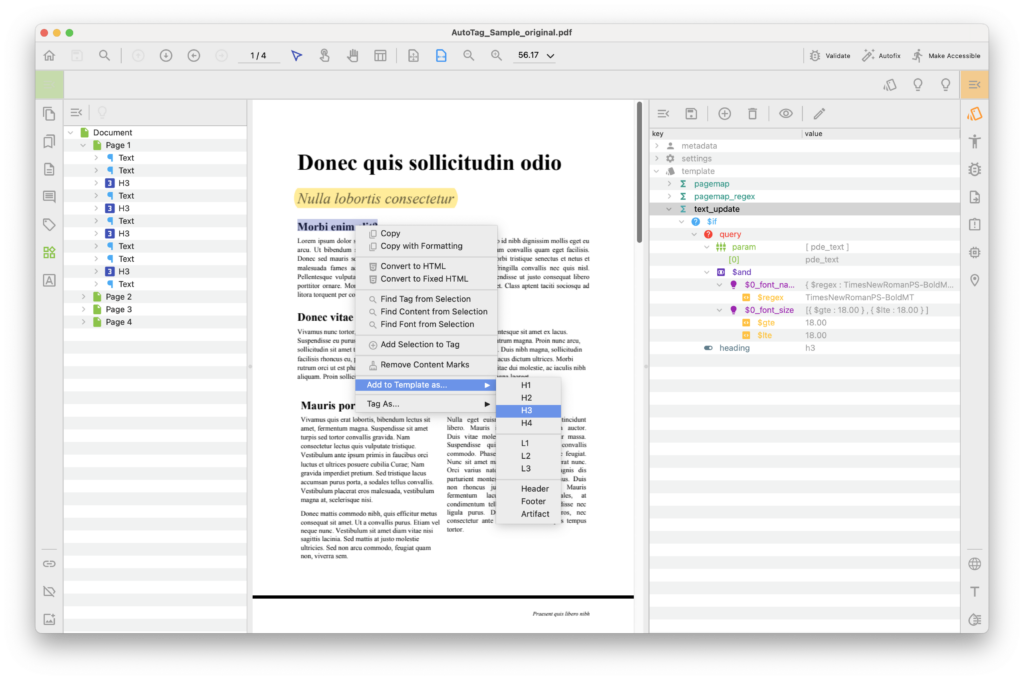
Example 1: Mark a text line as heading H3.
All consecutive lines with the same style are merged into a single "pde_text" element, and the entire text is tagged as "H3".

"text_line_update": [
  {
    "heading": "h3",
    "query": {
      "$and": [
        {
          "$0_font_name": {
            "$regex": "Verdana-Bold"
          }
        },
        {
          "$0_font_size": "10"
        },
        {
          "$0_fill_color": [
            "67",
            "97",
            "238"
          ]
        }
      ],
      "param": [
        "pde_text_line"
      ]
    },
    "statement": "$if"
  }
] 

Example 2: Mark a text line that starts with "Transaction Details" as an anchor.
This ensures the line can be referenced by other functions (e.g., from the initial element).

"text_line_update": [
{
  "comment": "Create ANCHOR-Table",
  "flag": "anchor",
  "name": "ANCHOR-Table",
  "query": {
    "$and": [
      {
        "$0_text": {
          "$regex": "^Transaction Details"
        }
      }
    ],
    "param": [
      "pde_text_line"
    ]
  },
  "statement": "$if"
}

🧩 text_line_neighbours

The "text_line_neighbours" function determines whether two adjacent "pde_text_line" elements should be joined into the same paragraph or kept separate. It evaluates the upper line against the lower line, moving from top to bottom, and decides whether to merge them into a continuous "pde_text" block.

Joining only occurs when:

  • Both lines belong to the same container.
  • Neither line has the "flag": "no_join".
  • Their text styles match (if defined).
  • Their font sizes match within the tolerance of "text_line_join_font_size_distance".
  • No splitting objects (such as "pde_line" or "pde_rect") exist between the lines.

If a "pde_text_line" has an initial element of type "pde_text", it is automatically added to that "pde_text" block, and lines from other initial elements will never be joined.

🔧 Values

  • "join" — If "true", the two lines are merged into the same paragraph. If "false", the paragraph is broken between them. If not defined, default joining rules apply (based on font size, style, and spacing).
  • "split" — If "true", explicitly forces a break between the lines, dividing them into separate paragraphs.

⚠️ "join" is applied during paragraph ("pde_text") creation.

⚠️ "split" is applied during paragraph post-processing, when an existing paragraph may be divided into multiple paragraphs (for example, when "no_new_line" is set).

⚙️ Thresholds

  • text_line_join_font_size_distance
  • text_line_distance_max
  • text_line_distance_max_ratio
  • text_line_join_distance

📦 Template Source

  • The "element_template" node of the initial element assigned to the upper "pde_text_line", if such an initial element is defined.
  • Otherwise, values are taken from the general document-level template.

💡 Best Practice Recommendations

  • To Force Paragraph Merge — Set "join": "true" in "text_line_neighbours" when two lines must be treated as part of the same paragraph, even if spacing or styles differ.
  • 🚫 To Prevent Paragraph Merge — Set "join": "false" to explicitly break between lines that would otherwise be joined.
  • To Force Split — Use "split": "true" to separate lines into distinct paragraphs, regardless of style similarity.
  • 🚫 Prevent paragraph merging – Place visual splitters like "pde_line" or "pde_rect" intentionally as initial elements when you want to block paragraph merging at a specific point.
  • 🚫 Exclude lines from joining — Use "flag": "no_join" in "text_line_update" for lines that must never be considered for merging, regardless of context.
  • Allow font size tolerance — Adjust "text_line_join_font_size_distance" if lines with slightly different font sizes (e.g., bold or italic emphasis) should still be joined.
  • ⚠️ If a "pde_text_line" has an initial element of type "pde_text", it is always added to that "pde_text" block.
  • ⚠️ Lines belonging to different initial elements are never joined.
  • ⚠️ Lines are merged only if their text style values match (when styles are defined).
  • ⚠️ Font sizes must match; small differences are tolerated within "text_line_join_font_size_distance".
  • ⚠️ Paragraph merging is blocked if visual splitters (such as "pde_line", "pde_rect", or other layout-dividing elements) exist between the lines.

🔍 Examples

Example 1: Split two text lines with the specific font size when their baselines differ by more than 12 px on the Y axis

"text_line_neighbours": [
  {
    "query": {
      "$and": [
        {
          "$0_font_size": "8.5"
        },
        {
          "$1_font_size": "8.5"
        },
        {
          "$var_diff": {
            "$gt": "12"
          }
        }
      ],
      "param": [
        "pde_text_line",
        "pde_text_line"
      ],
      "var": {
        "$var_diff": "MINUS($0_baseline_y,$1_baseline_y)"
      }
    },
    "split": "true",
    "statement": "$if"
  }
]

🧩 text_update

he "text_update" stage finalizes paragraphs ("pde_text") after line detection and joining. Internally it has two modes:

  • If "text_only" is enabled in thresholds, it splits lines at large spaces and creates one "pde_text" per line, then clears intermediate lines.
  • Otherwise, it builds line containers and joins lines into paragraphs, then runs enrichment passes (drop caps, indents, alignment, newlines), performs text splitting, and finally updates the resulting "pde_text" blocks. Empty texts are cleaned up at the end.

In the full pipeline, the engine:
creates line containers → recognizes/merges containers → materializes them as "pde_text" → detects drop caps, indents, alignments, explicit newlines → runs "split_texts" → runs "update_texts" → removes empty paragraphs.

🔧 Values

  • "flag" — Behavioral modifier for the paragraph (e.g., "artifact", "header", "footer", "no_split", "continuous", "anchor").
  • "label" — Marks the paragraph as a label container.
  • "tag" — Assigns a structural tag type (e.g., "P", "H1", "Div", "Note").
  • "heading" — Assigns heading level ("normal", "h1""h6", "title", "note").
  • "text_flag" — Modifiers applied to the paragraph:
    • "table_caption" — Marks the text as a table caption.
    • "image_caption" — Marks the text as an image caption.
    • "chart_caption" — Marks the text as a chart caption.
    • "note_caption" — Marks the text as a note caption.
    • "filling" — Marks the text as filler (e.g., leaders or dots).
    • "uppercase" — Forces detection of uppercase usage.
    • "new_line" — Treats the paragraph as starting with a new line.
    • "no_new_line" — Prevents starting a new line, keeping content continuous.
  • "name" — Unique identifier assigned to the paragraph.
  • "single_instance" — Ensures uniqueness of paragraphs based on properties ("font_size", "font_name", "text", etc.).
  • "id" — Custom identifier string for external reference.

⚙️ Thresholds

  • isolated_text_ratio
  • text_split_distance
  • text_only

📦 Template Source

  • The "element_template" node of the initial element assigned to the "pde_text", if such an initial element is defined.
  • Otherwise, values are taken from the general document-level template.

💡 Best Practice Recommendations

  • 🚫 Prevent a paragraph from being tagged — Use "flag": "artifact" to remove filler or decorative blocks (e.g., repeating headers, dot leaders).
  • Force semantic role — Apply "tag": "P", "tag": "Div", or "tag": "Note" to directly assign structural meaning.
  • Mark headings explicitly — Use "heading": "h1" (or similar) to override automatic detection and include the block in the document outline.
  • 🚫 Prevent continuous merging — Use "text_flag": "new_line" to enforce a hard paragraph break.
  • Preserve continuity — Use "text_flag": "no_new_line" when a block should stay merged even if line breaks are detected.
  • ⚠️ Mark captions explicitly — "text_flag": "table_caption", "image_caption", "chart_caption", or "note_caption" ensures correct figure/table association for accessibility.
  • ⚠️ Assign unique "name" to paragraphs that need to be referenced by anchors or post-processing rules.
  • To Force Splitting — Set "split": "true" in "text_line_neighbours" to split between two lines.
  • To Force Splitting — Set "split": "true" in "text_line_update" for a single line to break the text there.
  • To Force Splitting — Apply "text_line_flag": "new_line" to always start a new paragraph.
  • To Force Splitting — Trigger splitting when average word spacing is below "text_split_distance".
  • To Force Splitting — Trigger splitting when words are similar in length (character count).
  • To Force Splitting — Trigger splitting when all lines in a block are single, non-hyphenated words.
  • To Force Splitting — Trigger splitting when the overall inter-line distance score (get_text_lines_distance) is below "text_split_distance".
  • 🚫 To Prevent Splitting — Set "join": "true" in "text_line_neighbours" to explicitly block splitting.
  • 🚫 To Prevent Splitting — Apply "text_line_flag": "no_new_line" to keep a line attached to the previous one.
  • 🚫 To Prevent Splitting — Set "flag": "no_split" on "pde_text" to prevent all splitting of that block.
  • 🚫 To Prevent Splitting — Assign an initial element of type "list" to "pde_text", which disables splitting inside lists.
  • A low threshold value in "text_split_distance" to encourage separation based on spacing.
  • Ensuring lines have an initial element (e.g., pde_text_line → initial element), which blocks any splitting.
  • ⚠️ Upstream controls matter — Results depend on prior steps: line container recognition, "text_line_neighbours" joins, detected drop caps, indents, alignments, and newlines all influence how paragraphs form before this update phase.

🔍 Example

Example 1: Mark all dot-leader words as artifacts.

"word_update": [
  {
    "flag": "artifact",
    "query": {
      "$0_text": {
        "$regex": "^\\.+$"
      }
    },
    "param": [
      "pde_word"
    ],
    "statement": "$if"
  }
]

🧩 element_graphic_neighbours

The element_graphic_neighbours function determines whether graphic elements (lines and rectangles) should be joined into a graphic table.

It operates during the detection of line-based tables (stroke paths or filled rectangles) and evaluates whether two elements are “neighbors” that belong to the same table.

Joining is decided using a priority-based evaluation:

  1. Knowledge Base (KB) rules — If a template rule explicitly defines neighbor logic ("element_graphic_neighbours"), this takes precedence. If the rule sets "join": "true", the elements are merged.
  2. Initial element relationship — If two elements share the same init elem, or if one was created by the other, they are joined.
  3. Flags — If either element has "no_table" set, they are excluded from joining. If the table is marked "no_expand", only elements inside its bounding box are considered.
  4. Threshold intersection — If none of the above resolves, geometric intersection is tested against the threshold "table_line_intersection".

🔧 Values

  • "join" — Boolean override for a tested pair (or table↔element). If present in a matched "element_graphic_neighbours" rule, it forces the decision that cycle.

⚙️ Thresholds

  • graphic_table_detect
  • table_line_intersection

📦 Template Source

  • The "element_template" node of the initial element assigned to the "pde_line"/"pde_rect"(and existing "pde_table" during extension), if such an initial element is defined.
  • Otherwise, values are taken from the general document-level template.

💡 Best Practice Recommendations

  • To Force Joining — Add a targeted "element_graphic_neighbours" rule with "join": "true" for the specific pair (or table↔element). This top-priority override merges them even if spacing/angles are borderline, provided they share the same form and detection is enabled.
  • To Create a Table Intentionally — Define an initial element for a representative stroke/rect (or a named graphic table). The first pass will promote it to a "pde_table" and the second pass will extend it.
  • To Expand a Specific Table — Set an element’s initial parent to the table’s "name". During extension, any stroke/rect with that parent is absorbed by the table without additional checks.
  • 🚫 To Prevent Joining — Add a rule with "join": "false" for the suspect pair (or table↔element). This blocks merging even if their borders intersect.
  • 🚫 To Extend a Table — Mark strokes/rects that must never participate with "flag": "no_table" upstream; they are skipped before any join test.
  • 🚫 To Stop a Table from Expanding — For an initial graphic table, apply a “no expand” flag so only elements explicitly tied to it as initial element remain eligible; other nearby strokes are ignored.
  • To Adjust Detection Sensitivity — Raise "table_line_intersection" to require stronger overlap (fewer false tables), or lower it to tolerate noisier scans. Disable/enable detection per region by toggling "graphic_table_detect".
  • ⚠️ Joins only occur within the same form XObject; graphics across different forms are never grouped.

🔍 Example

Example 1:

"element_graphic_neighbours": [

]

🧩 element_graphic_update

The element_graphic_neighbours function determines whether graphic elements (lines and rectangles) should be joined into a graphic table.

It operates during the detection of line-based tables (stroke paths or filled rectangles) and evaluates whether two elements are “neighbors” that belong to the same table.

Joining is decided using a priority-based evaluation:

  1. Knowledge Base (KB) rules — If a template rule explicitly defines neighbor logic ("element_graphic_neighbours"), this takes precedence. If the rule sets "join": "true", the elements are merged.
  2. Initial element relationship — If two elements share the same init elem, or if one was created by the other, they are joined.
  3. Flags — If either element has "no_table" set, they are excluded from joining. If the table is marked "no_expand", only elements inside its bounding box are considered.
  4. Threshold intersection — If none of the above resolves, geometric intersection is tested against the threshold "table_line_intersection".

🔧 Values

  • "join" — Boolean override for a tested pair (or table↔element). If present in a matched "element_graphic_neighbours" rule, it forces the decision that cycle.

⚙️ Thresholds

  • graphic_table_detect
  • table_line_intersection

📦 Template Source

  • The "element_template" node of the initial element assigned to the "pde_line"/"pde_rect"(and existing "pde_table" during extension), if such an initial element is defined.
  • Otherwise, values are taken from the general document-level template.

💡 Best Practice Recommendations

  • To Force Joining — Add a targeted "element_graphic_neighbours" rule with "join": "true" for the specific pair (or table↔element). This top-priority override merges them even if spacing/angles are borderline, provided they share the same form and detection is enabled.
  • To Create a Table Intentionally — Define an initial element for a representative stroke/rect (or a named graphic table). The first pass will promote it to a "pde_table" and the second pass will extend it.
  • To Expand a Specific Table — Set an element’s initial parent to the table’s "name". During extension, any stroke/rect with that parent is absorbed by the table without additional checks.
  • 🚫 To Prevent Joining — Add a rule with "join": "false" for the suspect pair (or table↔element). This blocks merging even if their borders intersect.
  • 🚫 To Extend a Table — Mark strokes/rects that must never participate with "flag": "no_table" upstream; they are skipped before any join test.
  • 🚫 To Stop a Table from Expanding — For an initial graphic table, apply a “no expand” flag so only elements explicitly tied to it as initial element remain eligible; other nearby strokes are ignored.
  • To Adjust Detection Sensitivity — Raise "table_line_intersection" to require stronger overlap (fewer false tables), or lower it to tolerate noisier scans. Disable/enable detection per region by toggling "graphic_table_detect".
  • ⚠️ Joins only occur within the same form XObject; graphics across different forms are never grouped.

🔍 Example

Example 1:

"element_graphic_neighbours": [

]

🧩 image_update

The "image_update" function processes page images ("pde_image") after low-level detection and assigns their semantic role for tagging and downstream layout. Use it to decide whether an image is content (e.g., figure), decorative (artifact), or requires accessible text, and to control how it participates in headers/footers vs. body flow.

🔧 Values

  • "tag" — Assign the structural tag for the image (e.g., "Figure").
  • "flag" — Control behavior or placement (e.g., "artifact", "header", "footer").
  • "alt" — Provide alternative text for accessibility; used as the image’s descriptive text.
  • "name" — Set a unique name so other rules can target this image.
  • "single_instance" — Ensure only one matching image gets updated when multiple candidates match.
  • "id" — Custom identifier for cross-referencing in templates or post-processing.

⚙️ Thresholds

📦 Template Source

  • Applies to "pde_image" elements. Values are taken from the image’s initial element when defined; otherwise, document-level defaults are used.

💡 Best Practice Recommendations

  • Make an image a proper figure — Set "tag": "Figure" and provide "alt" to ensure it’s included in reading order and accessible.
  • 🚫 Treat decorative images as non-content — Set "flag": "artifact" to exclude logos, watermarks, or backgrounds from tagging and reading order.
  • Pin images to headers/footers — Use "flag": "header" or "flag": "footer" for recurring brand marks or page furniture.
  • Guarantee a single target — Use "single_instance" with a specific "name" or "id" so only the intended image is affected.
  • Coordinate captions — Mark the caption text elsewhere with "text_flag": "image_caption" in "text_update" so assistive tech associates caption and figure reliably.
  • 🚫 Avoid empty figures — Always set "alt" (or move to "artifact") to prevent unlabeled figures that harm accessibility.
  • Prefer template rules over heuristics — When a particular icon/logo is repeatedly misclassified, add a targeted "image_update" rule keyed by "name", "id", or region constraints.

🔍 Example

Example 1: Artifact images wider than 400px

"image_update": [
  {
    "flag": "artifact",
    "query": {
        "$and": [
          {
            "$0_width": {
              "$gt": "400"
            }
          }
        ],
        "param": [
          "pde_image"
        ]
    },
    "statement": "$if"
  }
]

🧩 element_update

The "element_update" function processes generic page elements ("pde_element", including "pde_text", "pde_image", "pde_line", "pde_rect", "pde_table") after they are detected. It assigns semantic roles, tags, identifiers, and behaviors that control how the element is treated in layout grouping, tagging, and accessibility mapping.

🔧 Values

  • "alt" — Sets alternate text for accessibility (commonly used for images and figures).
  • "actual_text" — Overrides extracted text with a normalized or mapped version.
  • "lang" — Assigns language to the element.
  • "flag" — Modifies behavior or classification of the element (e.g., "artifact", "header", "footer", "no_split", "no_join", "anchor").
  • "label" — Marks element as a list label.
  • "tag" — Assigns a structural tag type (e.g., "P", "H1", "Figure", "Table").
  • "name" — Unique identifier for the element, used to reference it in other functions.
  • "single_instance" — Ensures uniqueness by comparing selected properties (e.g., "font_size|font_name|left").
  • "id" — Custom string identifier for external referencing.

⚙️ Thresholds

📦 Template Source

  • Applies to "pde_image" elements. Values are taken from the image’s initial element when defined; otherwise, document-level defaults are used.

💡 Best Practice Recommendations

  • Assign semantic roles — Use "tag": "P", "tag": "Figure", or "tag": "Table" to enforce structural meaning.
  • Guarantee accessibility — Add "alt" or "actual_text" for images, figures, and symbols.
  • 🚫 Exclude decorative items — Set "flag": "artifact" for logos, lines, or shapes that should not be tagged.
  • Move recurring elements — Use "flag": "header" or "flag": "footer" to direct elements into containers.
  • Anchor important regions — Mark elements with "flag": "anchor" and assign a "name" so they can be referenced by other template rules.
  • 🚫 Prevent duplication — Apply "single_instance" when only one instance of a matching element should be tagged.
  • Override text mapping — Use "actual_text" for special symbols, checkboxes, or shorthand notations.

🔍 Example

Example 1: Artifact all elements within the specified bounding box on the last page.

"element_update": [
    {
    "flag": "artifact",
    "query": {
        "$and": [
        {
          "$0_left": {
            "$gte": "354"
          }
        },
        {
          "$0_right": {
            "$lte": "586"
          }
        },
        {
          "$0_top": {
            "$lte": "694"
          }
        },
        {
          "$0_bottom": {
            "$gte": "156"
          }
        },
        {
          "$page_num": "$doc_num_pages"
        }
        ],
        "param": [
          "pde_element"
        ]
    },
    "statement": "$if"
    }
]

🧩 artifact_update

The "artifact_update" function determines whether elements previously classified as artifacts should remain artifacts or be reintegrated into the document’s main content structure. This process occurs after initial classification, using a combination of knowledge base rules, element flags, and heuristic evaluations.

It primarily targets isolated elements like images or decorations that were placed into artifacts. Based on conditions, these elements are either:

  • Kept in the artifact vector (and ignored for layout/tagging), or
  • Moved back to headers, footers, or the main page container for further processing.

This step ensures meaningful content is not mistakenly excluded from the semantic structure.

🔧 Values

  • "artifact" — Boolean flag to control artifact status. "true" keeps the element as an artifact; "false" removes it from artifacts and returns it to layout.

⚙️ Thresholds

  • artifact_similarity
  • artifact_border_distance_max
  • element_isolated_ratio
  • element_isolated_similarity

📦 Template Source

  • Values are taken from the general document-level template.

💡 Best Practice Recommendations

  • To Force Artifact Status — Set "artifact": "true" in "artifact_update" rules to ensure the element remains in artifacts.
  • To Force Artifact Status — Mark the element with "flag": "artifact" upstream (e.g., in "word_update" or "text_line_update") so it enters the artifact list early.
  • To Force Artifact Status — Remember that elements set as "initial_element" are never removed from artifacts; they skip this logic entirely.
  • To Force Artifact Status — Adjust "element_isolated_ratio" or "element_isolated_similarity" to classify isolated graphics (logos, marks) as artifacts.
  • 🚫 To Prevent Artifact Status — Set "artifact": "false" in "artifact_update" rules to restore an element to the layout and include it in structural recognition.
  • ⚠️ Always define "artifact" explicitly in the template if you need to guarantee consistent treatment of a given element.
  • ⚠️ Use "artifact_update" for items often misclassified (e.g., watermarks, background images, decorative borders).

🔍 Example

Example 1: Mark all small images as artifacts

"artifact_update": 
  { 
    "statement": "$if",
    "query": {
      "param": ["pde_image"],
      "$and": [
        { "$0_width": { "$lt": 20 } },
        { "$0_height": { "$lt": 20 } }
      ]
    },
    "artifact": true
  }
]